AI Search
Adds reverse image search and natural language search to Eagle — find what you need with a reference image or a simple description.
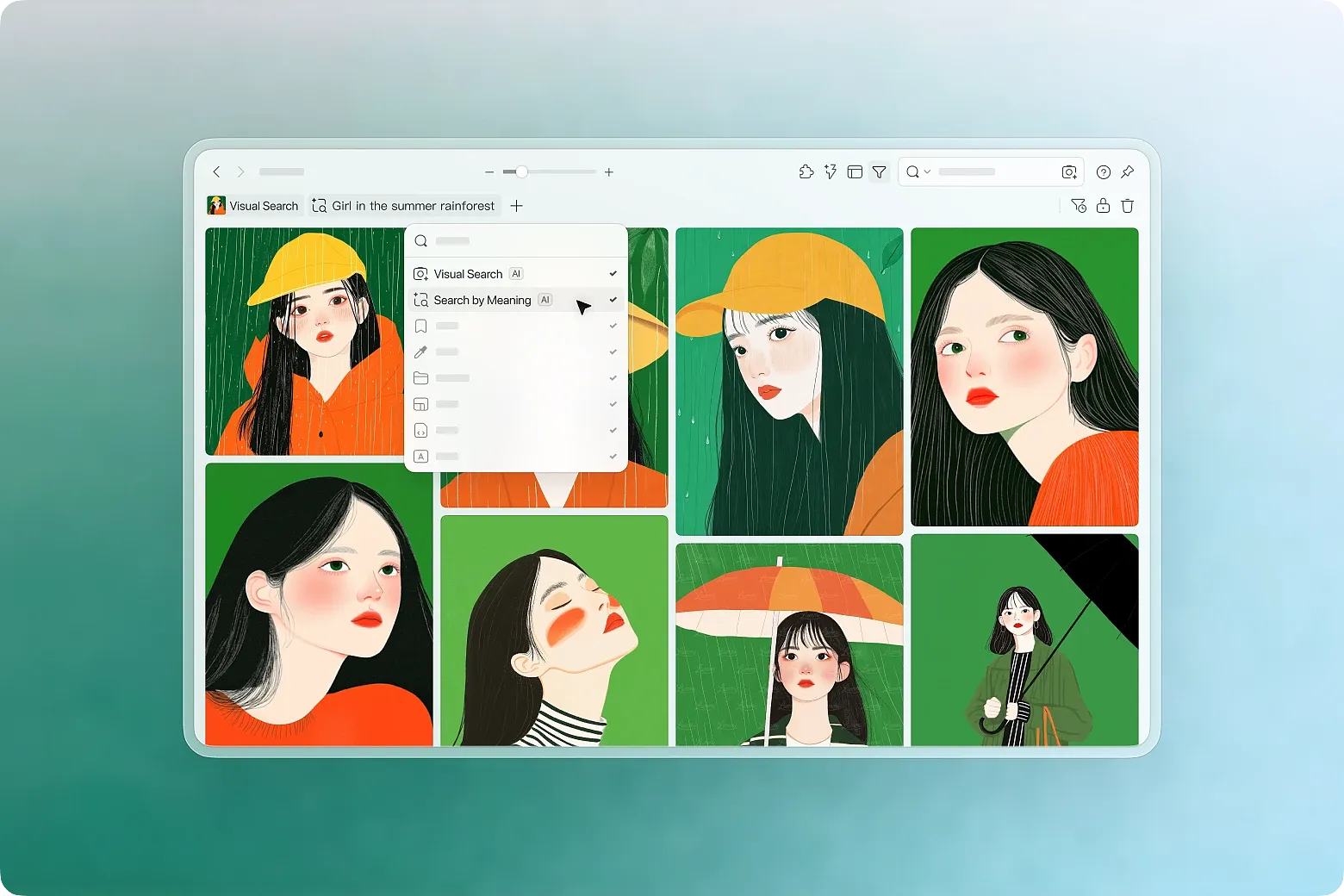
AI Search brings two new ways to find assets in Eagle, freeing you from the limitations of traditional folder, filename, and keyword search.
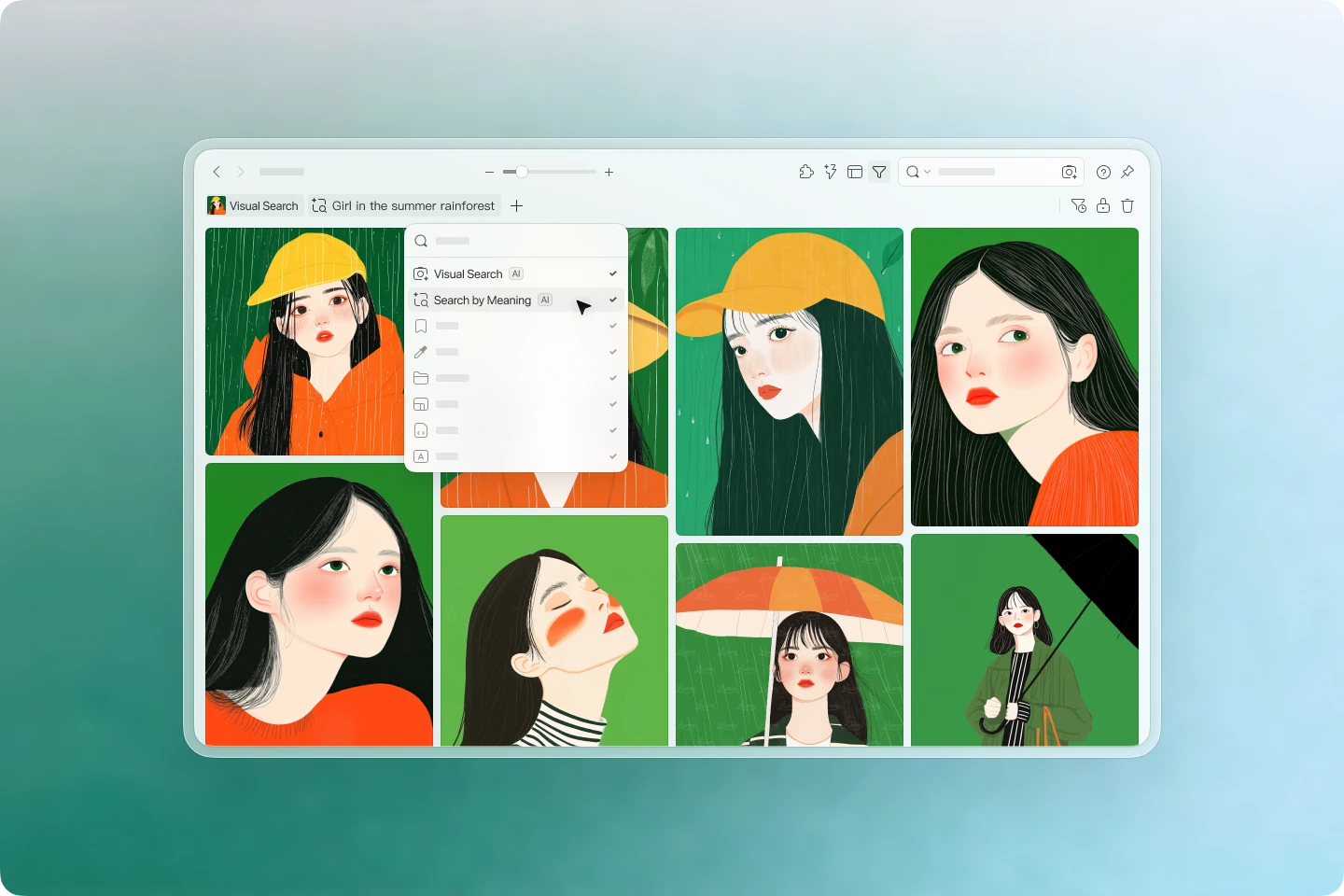
- Reverse Image Search: Use a reference image to find visually similar assets
- Natural Language Search: Search through the text information in your assets using plain descriptions
- Fully Local: No internet connection required, no uploads — works completely offline
You can start with a reference image to find similar assets, or type in a description to search in a way that more naturally reflects how you think about and recall your assets.
Reverse Image Search: Find Similar Assets with a Reference Image
AI Search supports reverse image search. Drag in any image and the system will find visually similar results from your library.
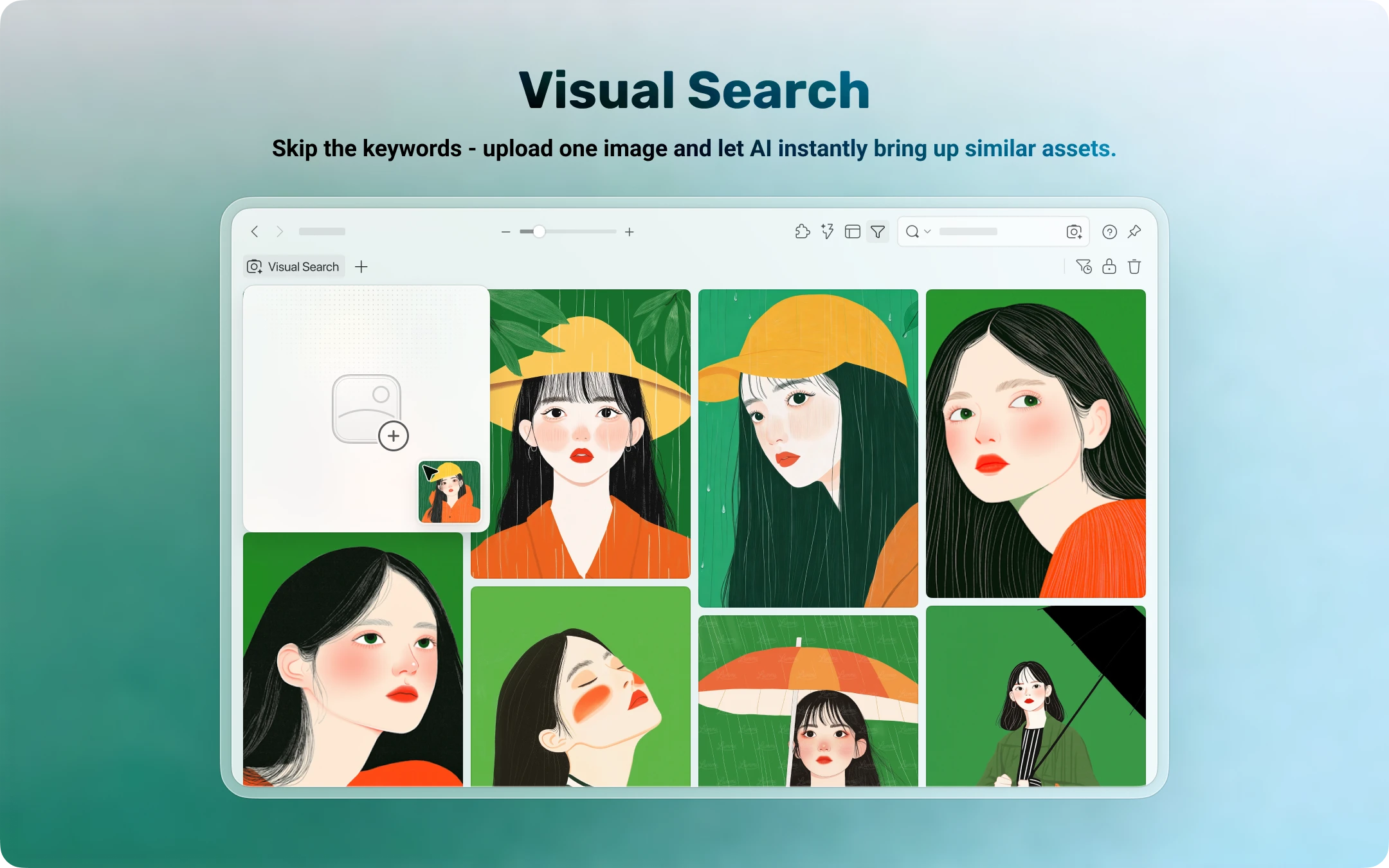
Search results are based on the image’s overall visual characteristics, including:
- Color palette and tones
- Composition and layout
- Visual style
- Subject matter and overall feel
This type of search is especially useful for things that are hard to put into words. A subtle color mood, a particular layout rhythm, or the overall atmosphere of an image — these are difficult to capture with a few keywords, but a reference image can get you there much faster.
How to Use It
There are two ways to start a reverse image search:
-
Using an image already in Eagle
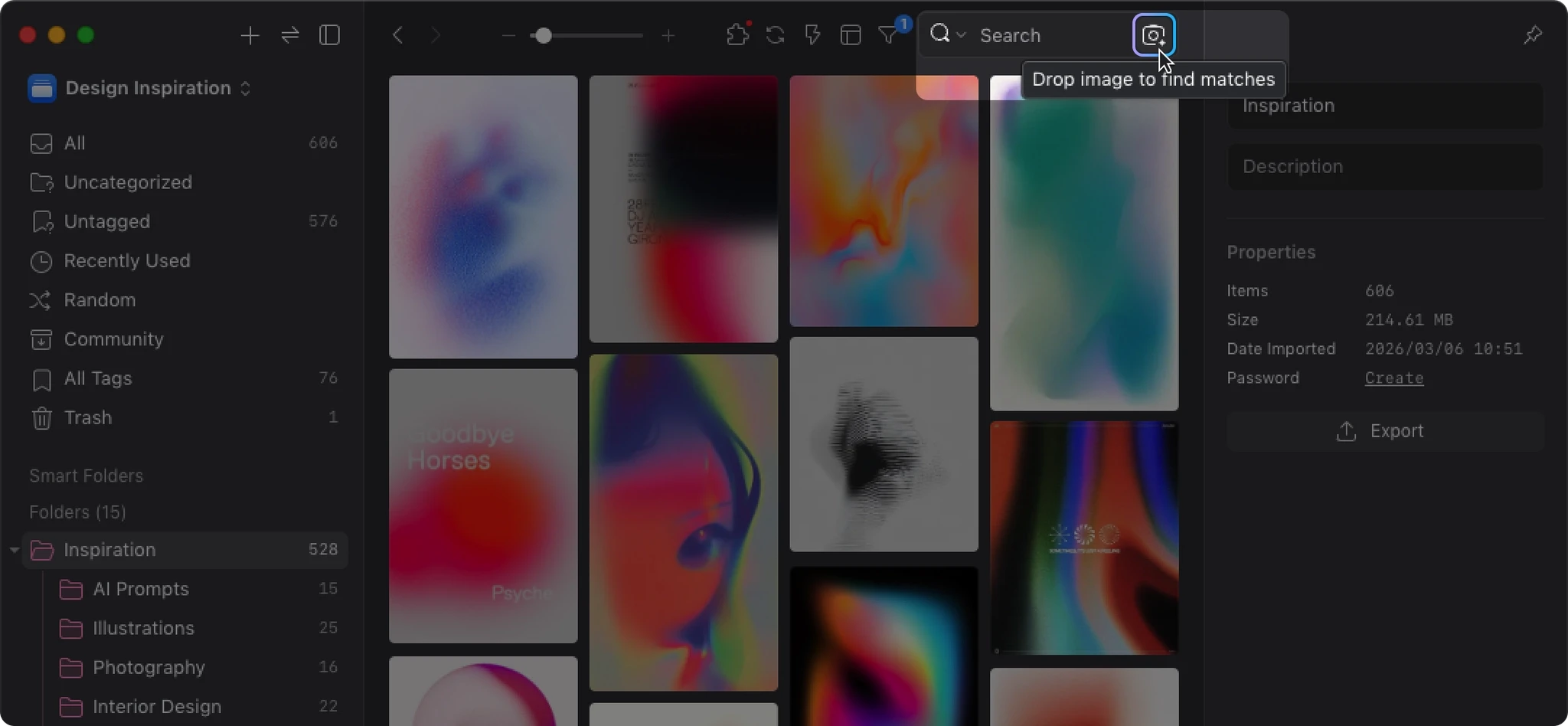
Drag any image from the file list directly onto the Reverse Image Search button next to the search bar, then release to begin searching.
-
Using an external image
Copy an image to your clipboard, then click the Reverse Image Search button and paste — it will use that external image as your reference.
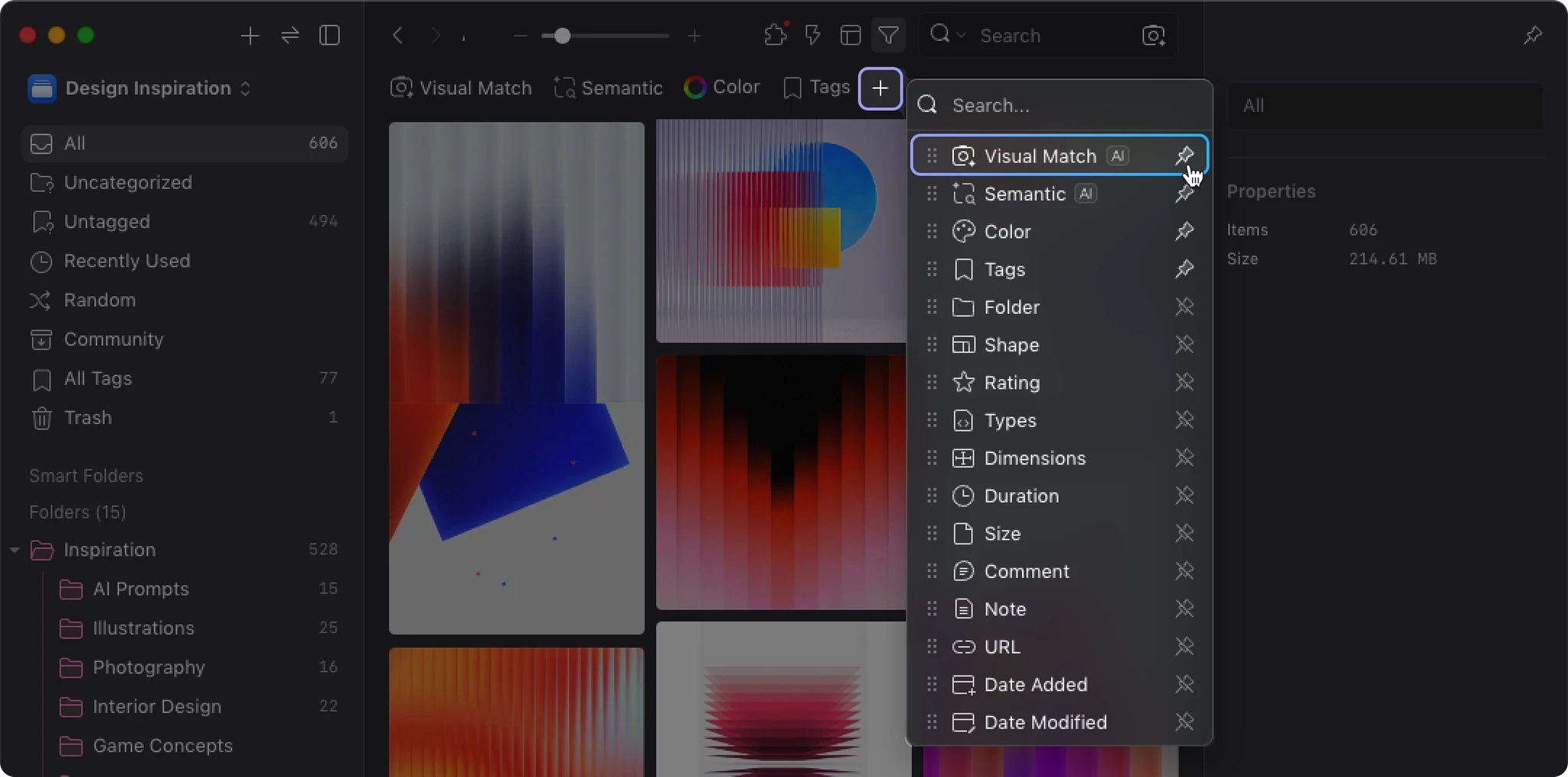
Where to Find It
You can access Reverse Image Search from the following locations:
-
To the right of the search bar
-
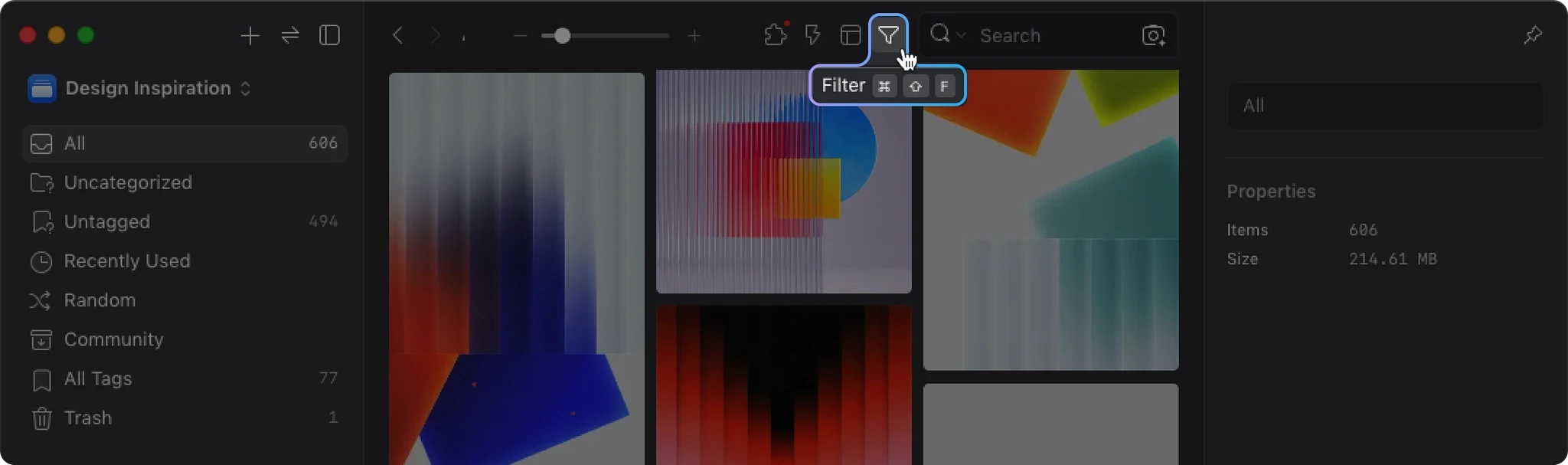
Pinned to your filter bar
Click the “+” in the filter bar to add Reverse Image Search to your quick-access area.
Tips for Best Results
If you have a general sense of what you’re looking for but aren’t sure which specific asset, try starting with a keyword or natural language search to narrow things down. Once you find something close, use that as your reference image to expand the search from there.
This “find one, then branch out” approach tends to be significantly more efficient when working with large libraries.
Natural Language Search: A More Flexible Way to Search Your Text Metadata
In addition to reverse image search, AI Search also supports natural language search.
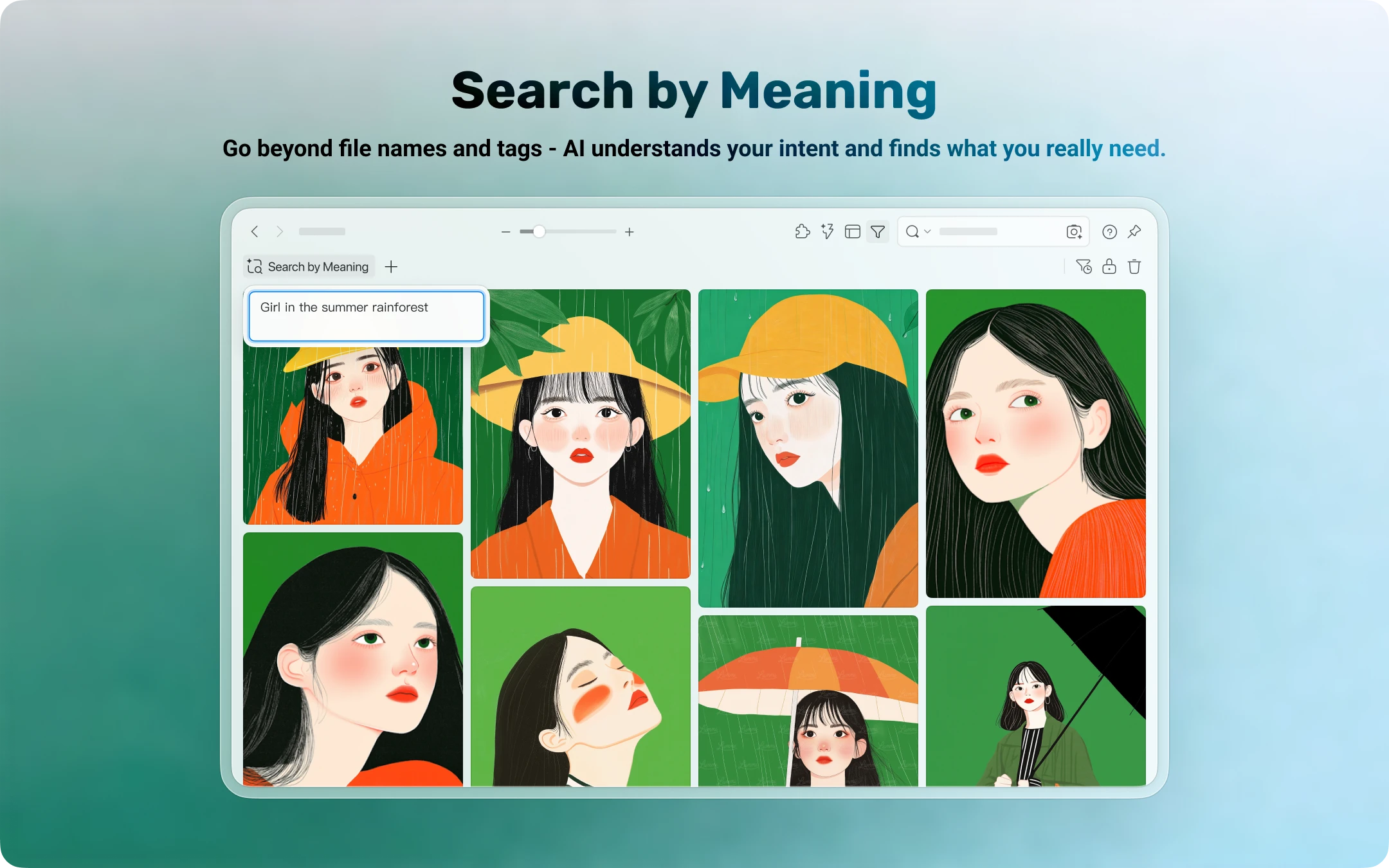
This feature currently works by performing semantic matching against the text information already associated with your assets, such as:
- Filenames
- Descriptions
- Notes
- Other searchable text fields
Think of it as semantic text search: a more flexible way to match against filenames, descriptions, and notes — rather than analyzing image content directly through visual understanding.
Unlike traditional keyword search, which matches text literally, natural language search attempts to understand semantic proximity. So even if the words you type don’t exactly match how an asset was originally named or described, results with close enough meaning can still surface.
For example, if your assets have reasonably clear names or descriptions, you can search with phrases like:
- warm-toned minimalist poster
- flat style animal illustration
- クリスマス
- dark moody portrait
and find matching content.
Natural language search works especially well when:
- You remember a theme or concept, not an exact keyword
- Your assets already have filenames, descriptions, or notes
- You want a more intuitive way to search through a well-organized library
- You need to search across multiple languages within your existing text metadata
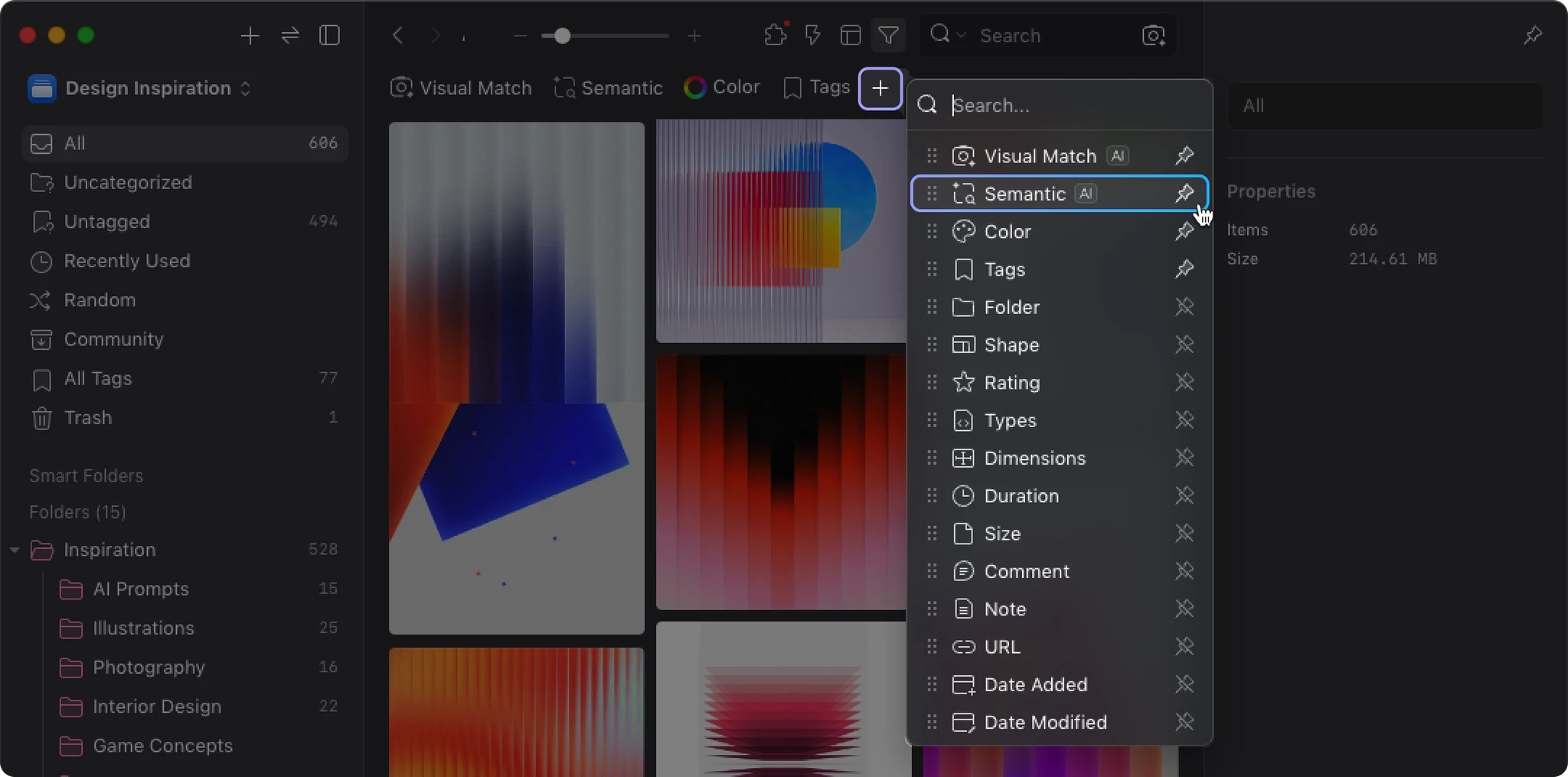
How to Enable It
- Click the “+” in the filter bar
- Select “Natural Language Search”
- Type your description or keyword in the input field
You can also pin it to your quick-access area for easy access later.
Before You Start: Where AI Search Works Best
The two search modes in AI Search are built on fundamentally different foundations:
- Reverse Image Search: Based on visual similarity between images
- Natural Language Search: Based on the text information already attached to your assets
Natural language search tends to shine in situations like:
- Filenames are meaningful and descriptive
- Descriptions or notes are filled in clearly
- Your library already follows consistent organizational habits
- You need to handle synonyms, cross-language queries, or varied ways of describing the same thing
On the other hand, if an image has no meaningful text associated with it — a random filename, no description, no notes — there is simply less for natural language search to work with, and results will reflect that.
This is not a limitation of the search engine itself. Even the most powerful search needs something meaningful to match against.
Fully Local — No Internet, No Uploads
Every step of AI Search’s analysis and retrieval happens on your own machine.
That means:
- Your images are never uploaded to the cloud
- No external servers are involved in the analysis
- Works even when you’re offline
- Your assets never leave your device
| Feature | Other AI Search Tools | Eagle AI Search |
|---|---|---|
| How it works | Upload to cloud → Analyze → Return results | Analyze locally → Search locally |
| Privacy | Assets pass through third-party servers | Assets stay on your device |
| Cost | Usage-based billing / subscription | Free to use after installing the plugin |
| Offline use | Requires internet connection | Fully offline capable |
For anyone managing client design files, a personal portfolio, or an internal reference library, this local-first approach fits more naturally into existing workflows and is much easier to sustain long-term.
GPU Acceleration for Large-Scale Processing
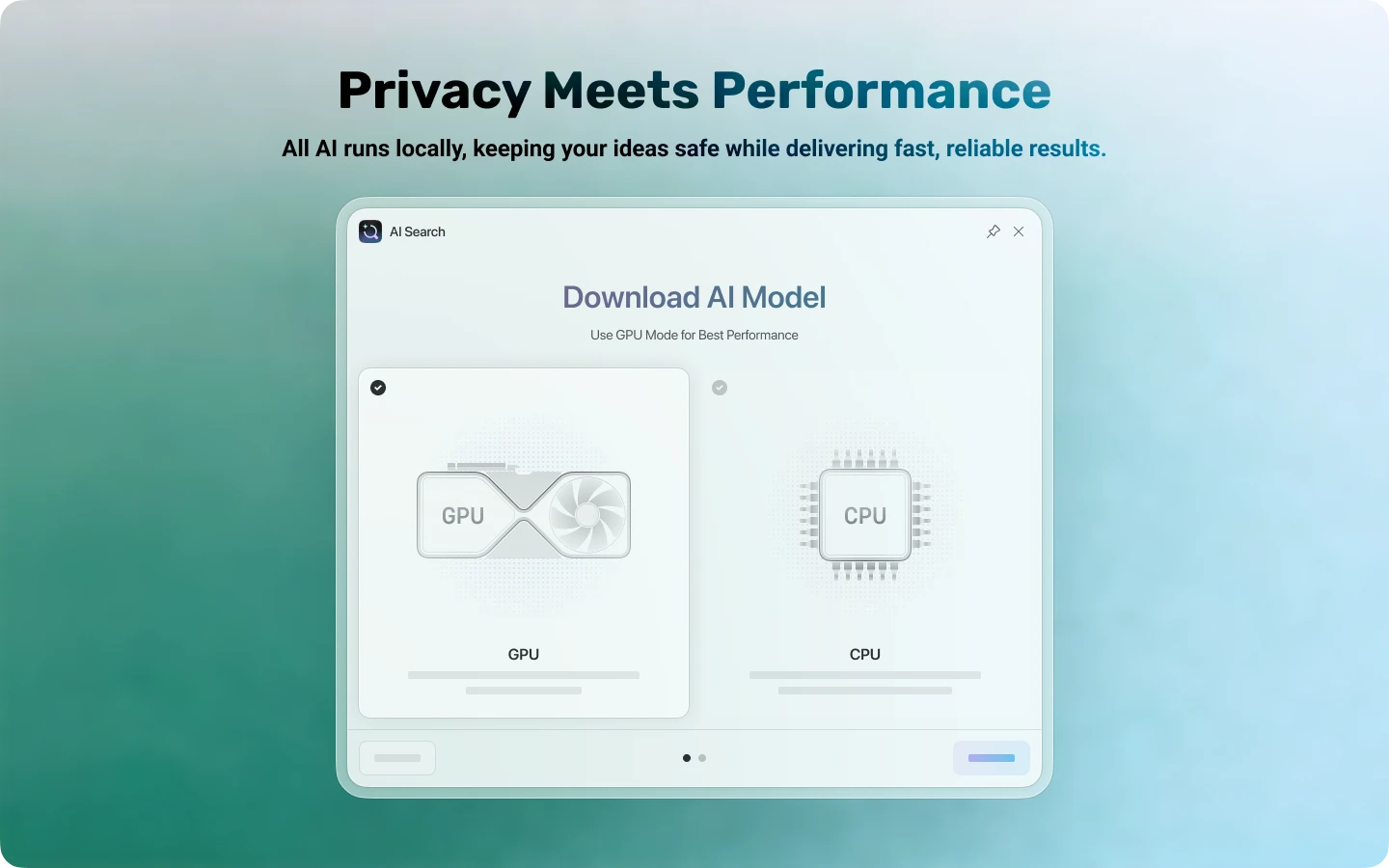
AI Search supports GPU acceleration. On compatible hardware, overall processing speed can be up to 30–50x faster than CPU-only mode.
| Environment | Support |
|---|---|
| Windows + NVIDIA GPU | Supports both GPU and CPU modes — GPU recommended |
| Windows + AMD / Intel GPU | CPU mode only (currently) |
| Mac (Apple Silicon) | GPU acceleration supported (enabled by default) |
| Mac (Intel) | CPU mode only |
If you have a large library, or frequently run indexing, batch analysis, or repeated searches, the difference with GPU acceleration will be very noticeable.
If you’re limited to CPU mode, AI Search will still run — but initial indexing of large libraries or batch image analysis will take considerably longer.
The setup wizard automatically detects your hardware and recommends the right version. No manual configuration needed.
Who Is AI Search For?
AI Search is particularly well-suited for users who:
- Have built up a large library and need more efficient ways to find things
- Remember assets visually rather than by filename
- Already have consistent naming conventions, descriptions, or notes in their library
- Want to pair it with AI Action to create a complete organize-and-search workflow
The larger your library, the more significant the difference AI Search tends to make.
- [Improved] Improved NVIDIA GPU detection on Windows for better compatibility with newer NVIDIA drivers
- [Fixed] Fixed an issue where the setup wizard could incorrectly show only CPU mode on Windows devices with supported NVIDIA GPUs
- [Fix] Fixed high memory usage when downloading large files
- [Fix] Fixed file corruption caused by network instability during download, requiring re-download
- [Fix] Fixed abnormal file content after download retry, causing repeated verification failures
- [Fix] Fixed inaccurate disk space detection on macOS, reporting insufficient space when enough is available
- [Fixed] Fixed an issue where natural language search results were incorrectly sorted on macOS
- [Improved] Indexing is no longer enabled automatically by default — users can now choose which libraries to index
- [Fixed] Fixed memory not being properly released after sleep, allowing system resources to be reclaimed more
effectively when idle - [Fixed] Fixed indexing getting stuck and unable to complete (progress stuck at 98% or 99%)
- [Fixed] Fixed sync not working properly after enabling indexing
- [Fixed] Fixed background processes not terminating automatically after closing Eagle
Initial release
You may also like